
Benefits of Burn-In Captions
Burn-in captions (or open captions) are hard-coded into your video. Learn more about how these enhance your content.


You’ve seen the phrase floating around: burn-in captions. It’s a common option during the late stages of video editing or when uploading your movie to an online platform or festival. But what does ‘burn-in captions’ mean?
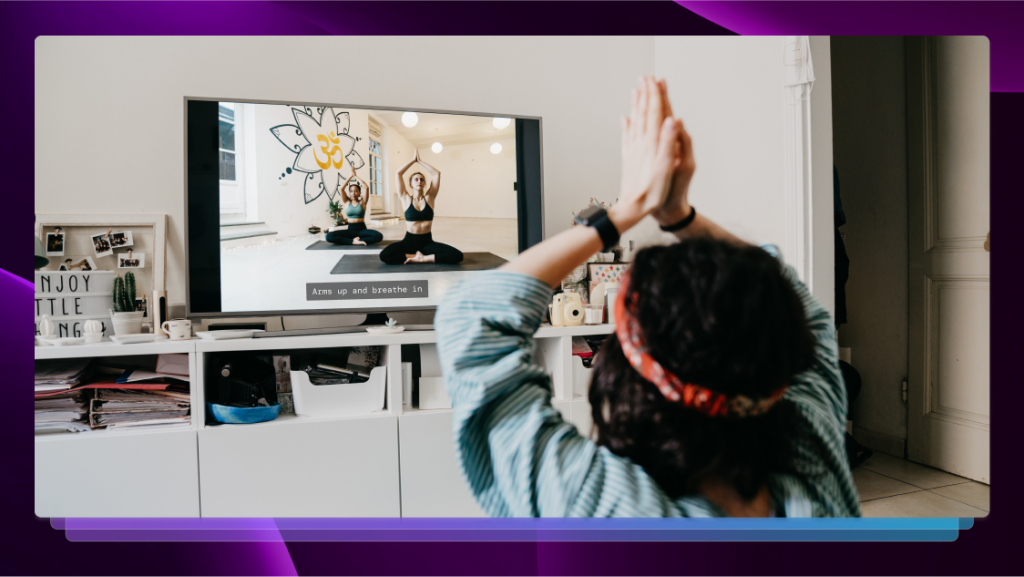
Captions are a form of subtitle for improving accessibility. As well as dialogue, captions include written descriptions of sound effects and other audio cues. This is super-helpful for people with impaired hearing or who need to watch with the sound down or in a noisy environment.
There are two ways of adding subtitles to your video file, best known as open and closed captions. If you want your video content to have closed captions, you need to create a ‘sidecar file’ such as an SRT. Depending on the platform and settings, your viewers may see your video without captions by default. Some users won’t be aware you’ve made subtitles available or how to switch them on.
On the other hand, the benefits of choosing open/burn-in captions include:
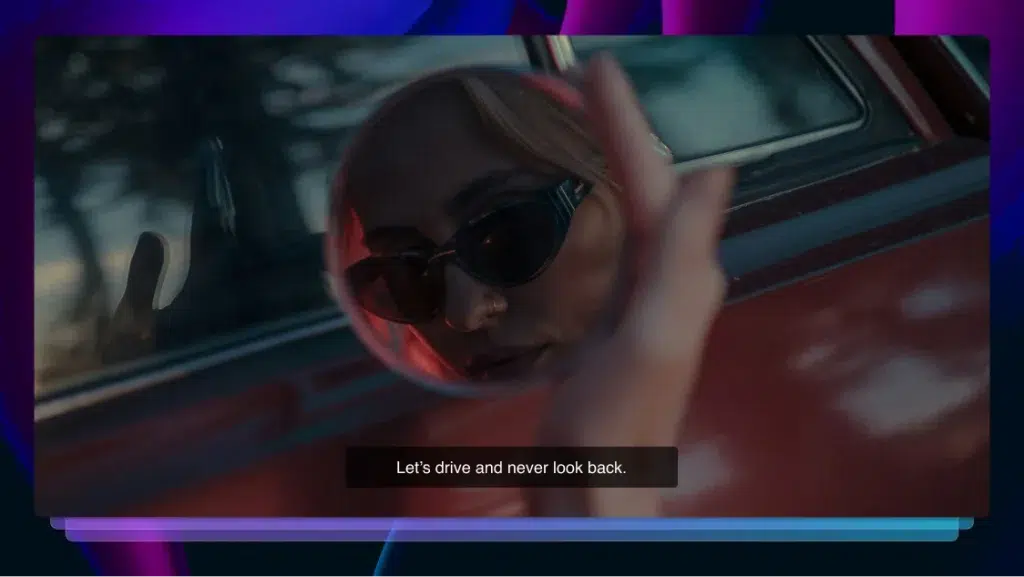
- The video editor is in full control of ensuring the viewer sees the captions.
- Full control includes choosing font, color, and size (Although it is essential to ensure captions are easy to read).
- Burned-in captions always display when your video auto-plays on social media, so viewers are more likely to keep watching.
- When you send a video to a client, you know they’ll have no problems activating and syncing open captions.
- While some platforms (e.g., Instagram) don’t accept separate closed captions, open captions are compatible with every platform.
If SEO/search engine visibility is a major concern for you, remember to upload a closed caption text file in addition to your open-captioned video. That way, search algorithms will still be able to rank your video page by ‘reading’ its spoken content.
And remember that YouTube cannot automatically translate open captions. So, if you choose open captions, it is helpful (and good for SEO) to upload foreign language subtitles as a sidecar file.
How to Add Burn-In (Open) Captions to Your Video
Adding open captions to your video is a multi-stage activity:
Some editing software also allows you to import an SRT file and add it to your timeline. But you will still need to transcribe and time-align your captions to create the SRT file. Also, when you import the file, it is likely to be difficult to read at first and require further attention to design.
However, there is a simpler way to create burned-in captions. Rev has an affordable burned-in captioning service. To have Rev create a video file with captions, follow these steps:
1. Order Captions From Rev (with Burned-In)
To add burned-in captions to your videos, go to Rev, and then click Get Started. Then, add your video file from your computer or the web.
Now, select Burned-In Captions and finish the checkout process. Once your captions order is completed by the Revver, you’ll receive a link in your email to download the new video file with permanent captions on them.
2. Customize in the Caption Editor
If you want to edit the text or change the default styling of the burned-in captions, open your video in the Rev Caption Editor. You can click the link to edit from your email, or in your Rev account under My Files. To export your captions with different styling, click the Download button in the top right corner. Be sure that the output file format is ‘Burned-In Captions Video’.
Now, change the BURNED-IN VIDEO CAPTIONS APPEARANCE to CUSTOMIZE and click NEXT. From here, you can change the font type, size, color, and bold or italicize your subtitles. You can also change the background style and color from wrap, to outline, or to none.
3. Generate New Video
When you’re happy with the way your captions look in the preview window, you have the option to save this as your default styling setting before exporting. Then, click GENERATE VIDEO to create a new video file with the updated styling. We’ll start processing the new video file and email you when it’s ready to download.
Rev can also translate your captions into more than 15 languages. Perfect if you want open captions for a different audience or an additional sidecar file with language options. And, with Rev’s burn-in captions, you are free to customize your captions by text type (i.e., bold, italic), font, color, and background.
Get Captions For Any Video Platform
No matter where you distribute your videos, open captions make sure they’ll always be visible to the viewer. Rev’s burned-in captions tool makes it easier than ever to ensure your videos are accessible on platforms that don’t currently support closed captions like Instagram, TikTok, and Snapchat.
Rather than spending hours adding your captions in a video software, order your captions from Rev and add-on burned-in captions to your order to get a new video file with customizable open captions right from our caption editor.